The bOnline desktop app lets you merge active calls into a single conference line using the Merge feature. This article explains how to set up a 3-way call and add further participants when needed.
How to Set Up a 3-Way Conference Call
- Dial the first person's number or answer an incoming call to establish an active call.
- While on the call, click Make a call in the top-left of the screen.
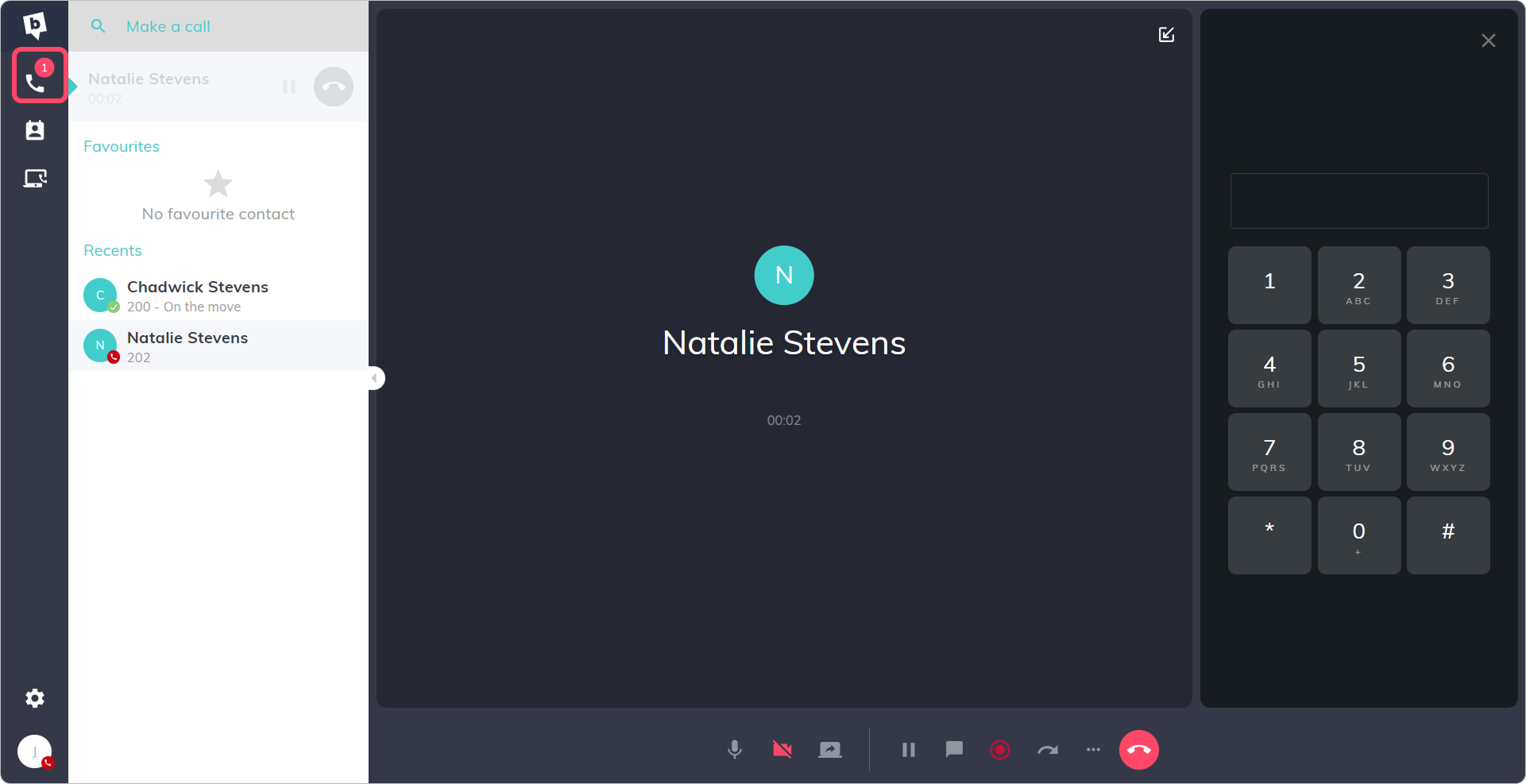
- Enter the number or extension of the second participant and click the dial button.
- Once the second participant answers and the call is connected, click Merge at the bottom of the screen.
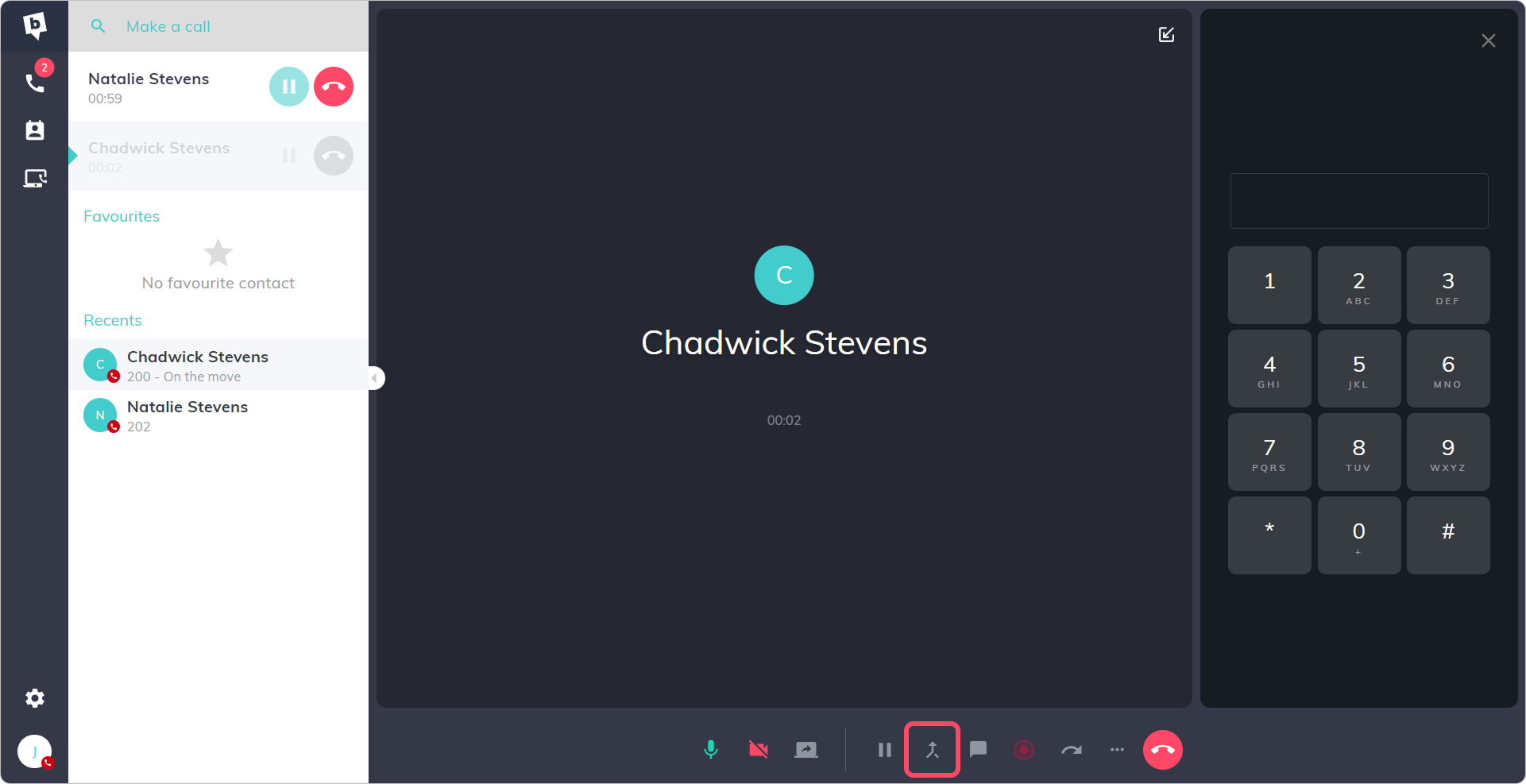
The two calls will now be combined into a single conference line.
Adding More Participants
To add further participants to the conference call, repeat the steps above - click Make a call, dial the next number, and select Merge once they are connected. You can add up to 10 participants in total.
Contact Us
We're always up for a chat! Live chat is available via the mybOnline sidebar or from the bottom-right corner of this page.
Other Contact Options
Reach the support team via WhatsApp for quick queries.
Log in to mybOnline and use the in-portal contact options.
Related Articles
- Making a call using your bOnline desktop app
- Setting a caller ID in the desktop app
- bOnline desktop app media settings
- Troubleshooting call issues on bOnline mobile and desktop apps
Was this article helpful?
That’s Great!
Thank you for your feedback
Sorry! We couldn't be helpful
Thank you for your feedback
Feedback sent
We appreciate your effort and will try to fix the article