Once a number is added to your blocklist, it applies across all devices linked to your user account, including desktop, web, mobile, and desk phones.
Accessing the blocklist
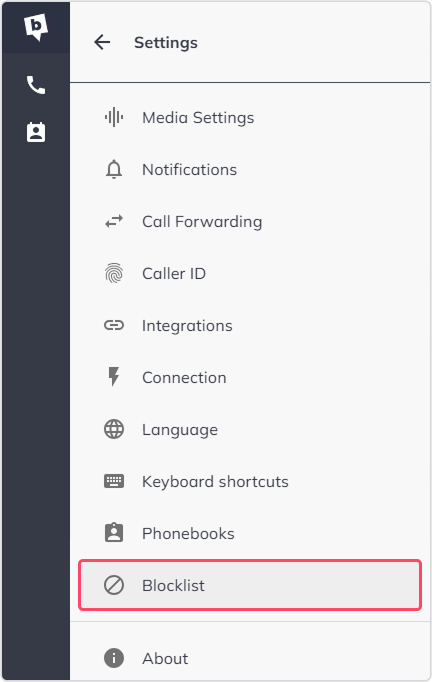
- Open Settings in the bOnline desktop or web app.
- Select Blocklist from the menu.
Adding a Number to the Blocklist
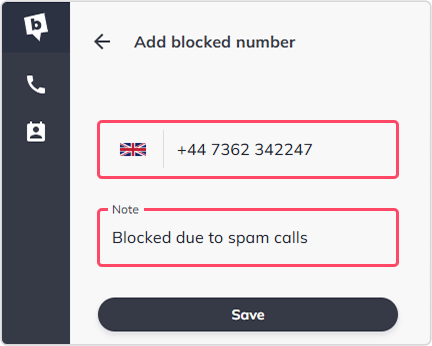
From the blocklist settings
- Click Add new number.
- Select the country code using the flag dropdown.
- Enter the phone number you want to block.
- Add a note to remind yourself why the number was blocked.
- Save the entry.
From Call History
You can also block a call directly from your Call History:
- Open your Call History.
- Select the call you want to block.
- Click Block.

Managing Your Blocklist
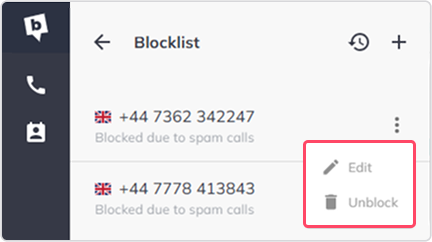
From the blocklist you can:
- Edit an entry to update the note.
- Unblock a number to allow calls from it again.
Limitations of Blocking
- The block applies only to calls directed to the user who enabled it. It does not affect other users in your organisation.
- If the blocked caller dials another user's direct number, the call will still go through.
- The block does not apply to calls coming into a group line or main number on a multi-user account.
What Happens When a Blocked Number Calls?
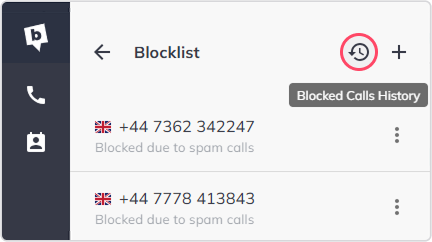
You will not receive a call notification. The call will still show in your Blocked Call History so you remain aware of the attempt.
Contact Us
We're always up for a chat! Live chat is available via the mybOnline sidebar or from the bottom-right corner of this page.
Other Contact Options
Reach the support team via WhatsApp for quick queries.
Log in to mybOnline and use the in-portal contact options.
Related articles
Was this article helpful?
That’s Great!
Thank you for your feedback
Sorry! We couldn't be helpful
Thank you for your feedback
Feedback sent
We appreciate your effort and will try to fix the article