bOnline's Call Recordings add-on lets you record, store, summarise, and instantly search calls with powerful AI transcriptions. Enhance training, stay compliant, and deliver standout customer service, all from one place.
Please note: This is an account-level add-on and will be billed according to the number of users connected to your account.How to Install the Call Recordings Add-on
- Go to the Account add-ons page in MybOnline.
- On the Call recordings card, click Edit.
- In the setup window, configure your call recording preferences.

Choose your preferences for each of the following:
- How recordings happen:
- Automatic (Recommended): all calls are recorded without any action.
- On-demand: you choose when to start and stop recordings.
- How you access and review recordings:
- Advanced (Recommended): includes transcripts, summaries, and keyword search.
- Basic: listen and download recordings in MybOnline.
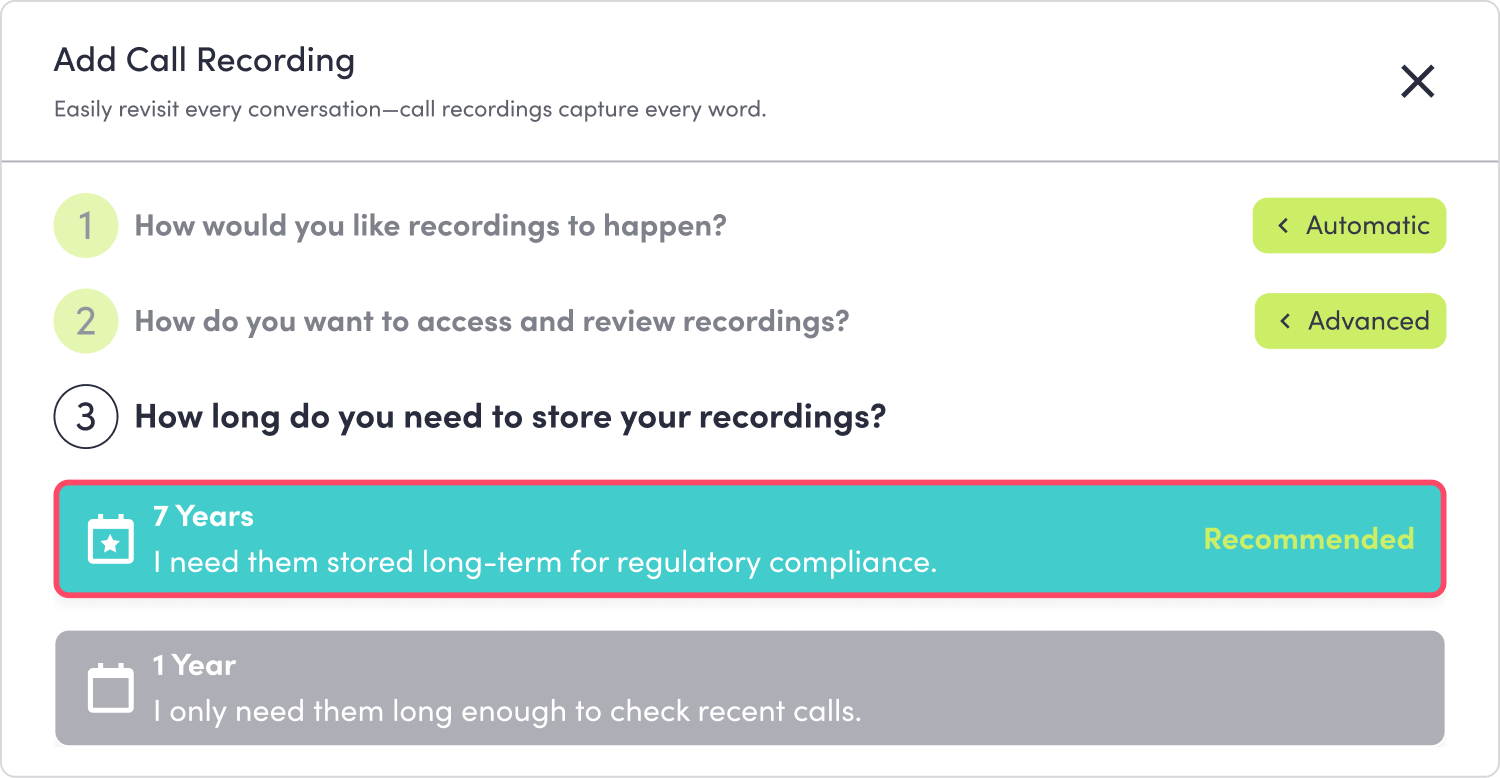
- How long recordings are stored:
- 7 Years (Recommended): long-term storage for compliance.
- 1 Year: short-term storage.
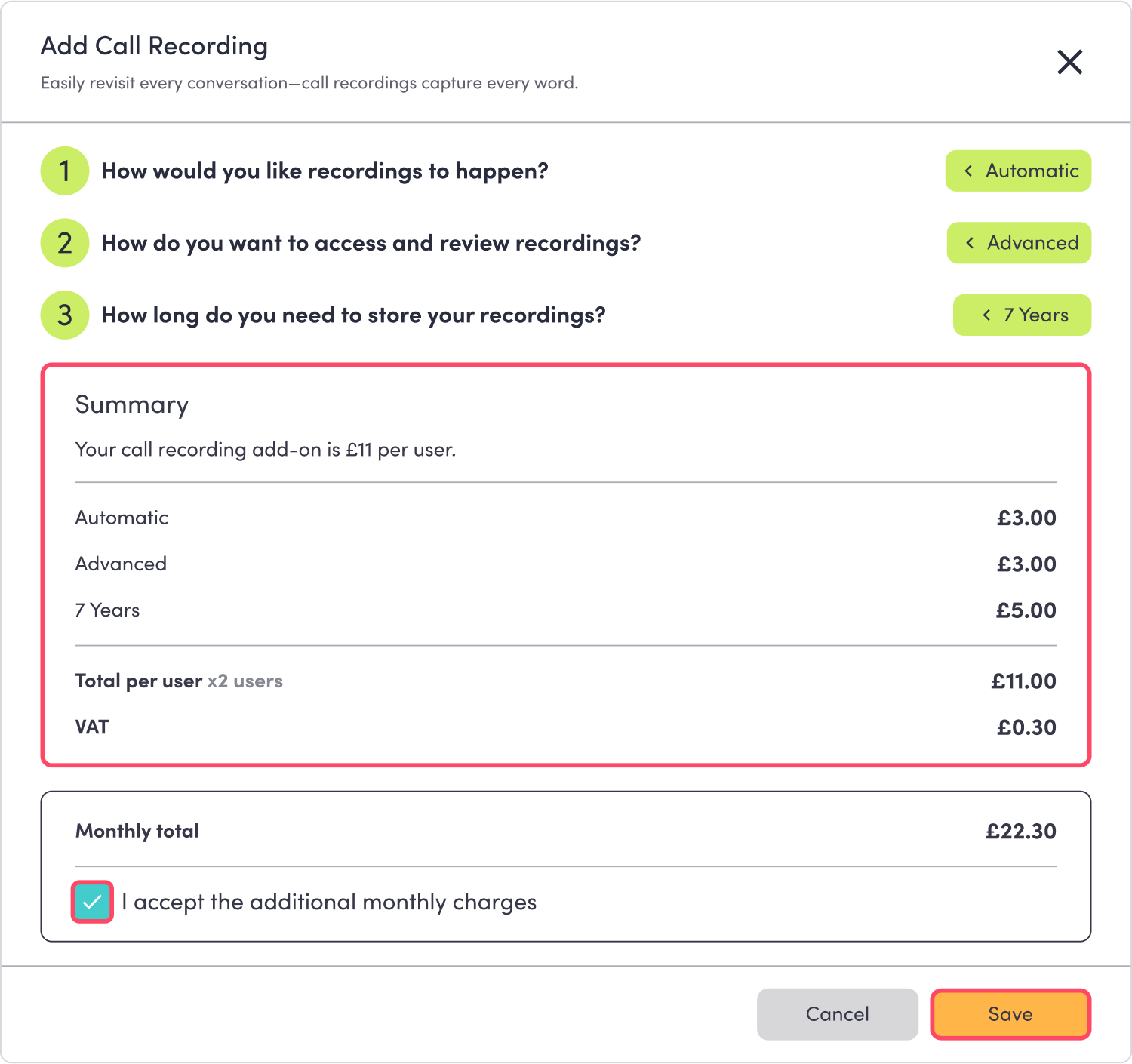
- Review the Summary screen. This will show your selected package, the monthly cost per user, and the VAT breakdown.
- Tick the box to accept the charges, then click Save.
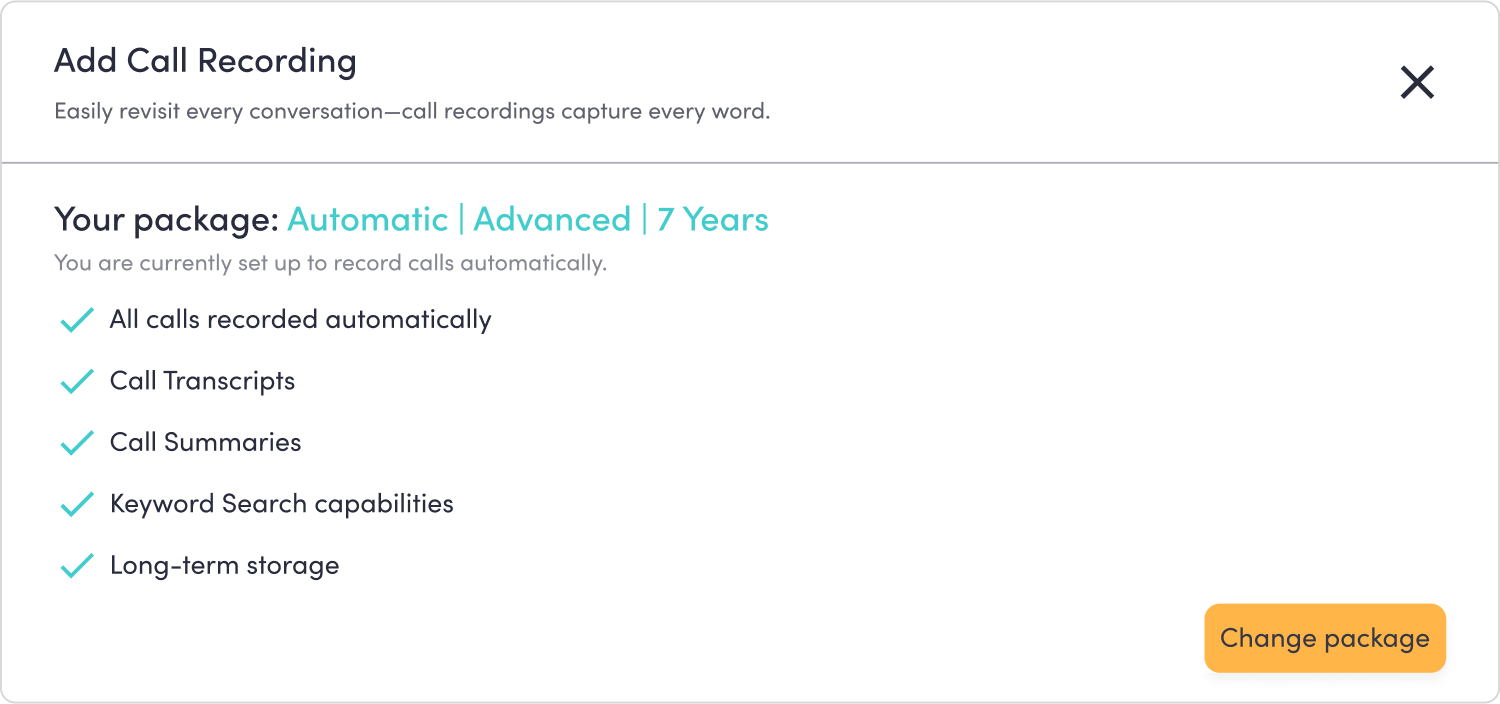
Once saved, the Call recordings add-on will appear at the bottom of your Account add-ons list with the package name and monthly price.
How to Downgrade or Remove the Add-on
If you want to switch back to the default free option (On-demand call recordings), follow these steps:
- Go to the Account add-ons page in MybOnline.
- Click Edit on the Call recordings card.
- Select the On-demand package.
- Click Save to confirm. Your billing will update automatically.
Related Articles
Was this article helpful?
That’s Great!
Thank you for your feedback
Sorry! We couldn't be helpful
Thank you for your feedback
Feedback sent
We appreciate your effort and will try to fix the article