To ensure your bOnline app works correctly, it needs access to certain features on your phone, such as your microphone and contacts. This guide explains how to enable these permissions if you didn't allow them when you first launched the app.
Before You Start
Ensure you have the bOnline mobile app installed on your iOS or Android device.
We recommend allowing all requested permissions to avoid issues with making calls or viewing contacts.
Steps for Android Users
Open your device Settings and Tap Apps (or Manage Apps).
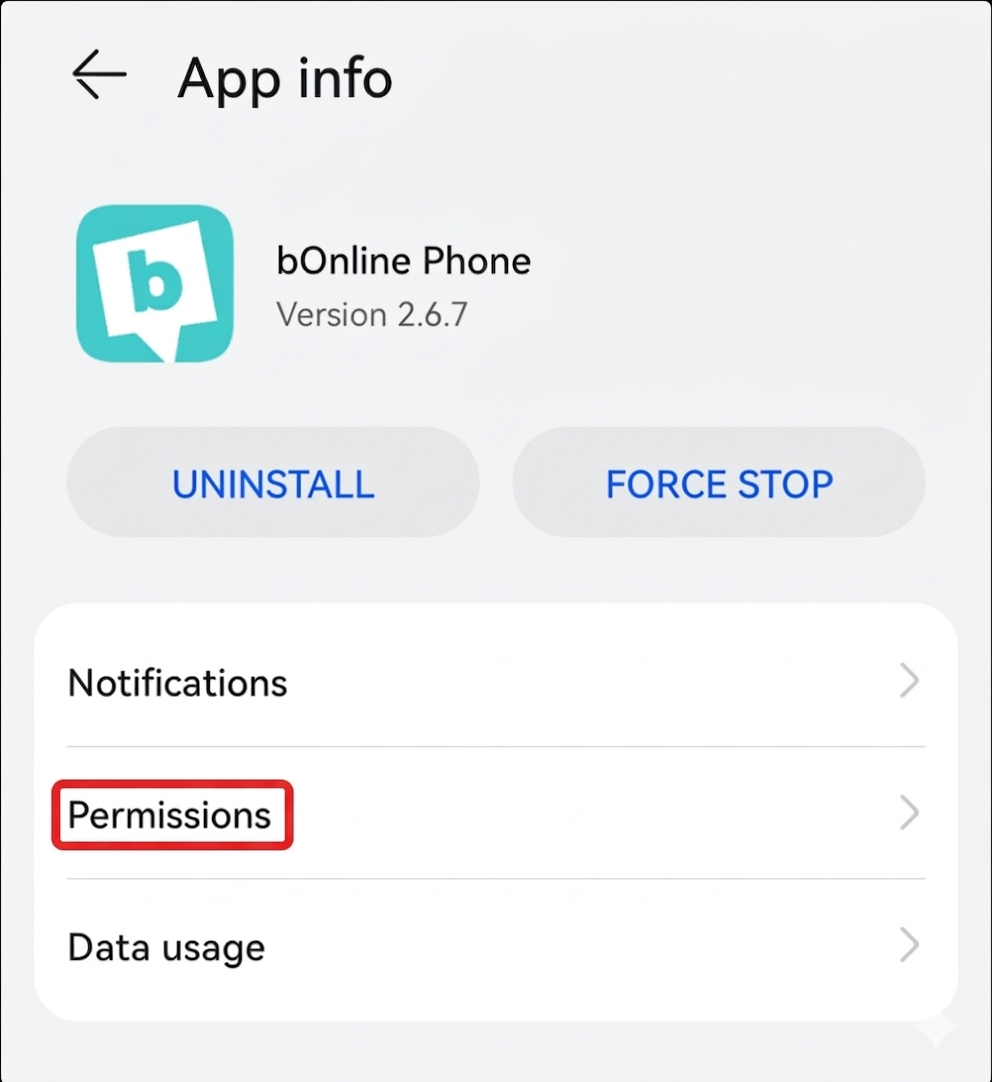
Search for the bOnline Phone app and tap on it.

3. Once you've selected the bOnline phone app, click on 'Permissions'.
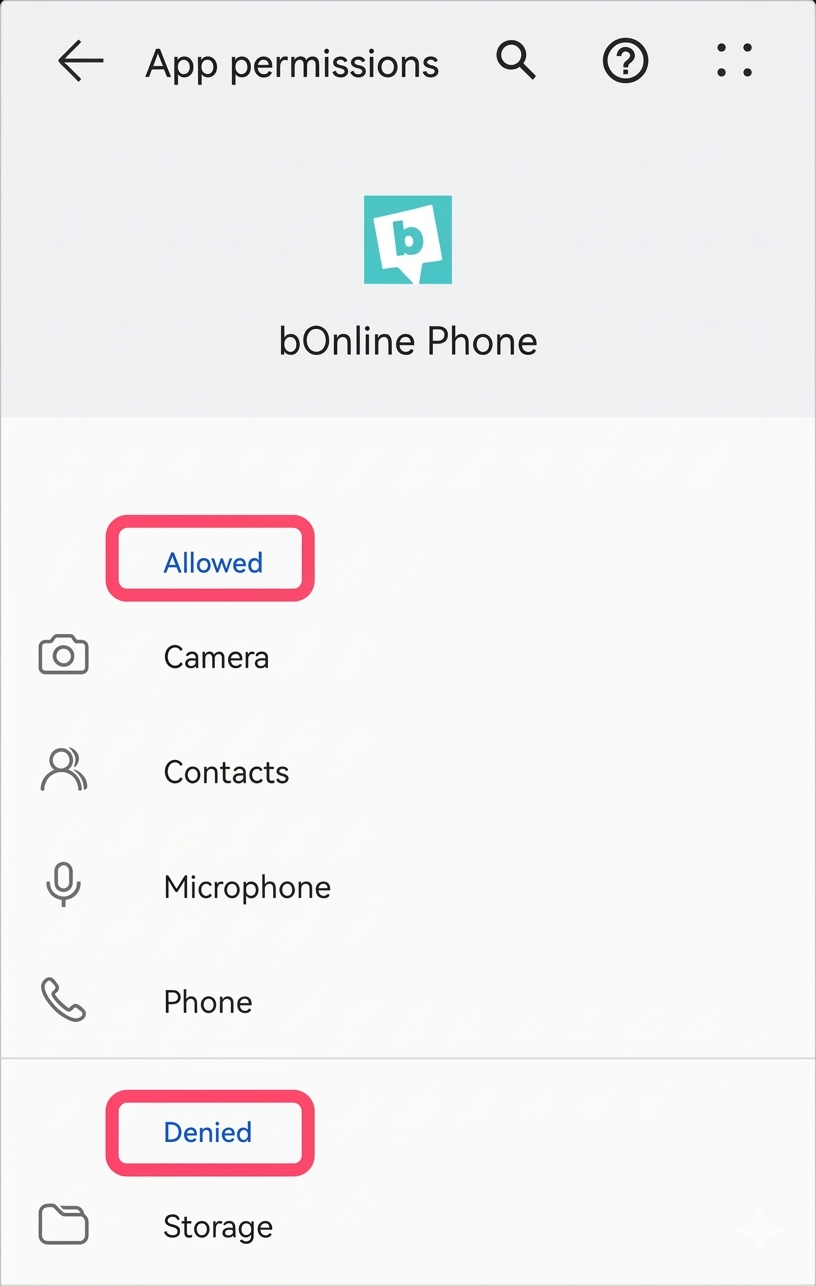
4. You will see a list of 'Allowed' and 'Denied' permissions. It is always advised that you allow all permissions to ensure your app works correctly.
Was this article helpful?
That’s Great!
Thank you for your feedback
Sorry! We couldn't be helpful
Thank you for your feedback
Feedback sent
We appreciate your effort and will try to fix the article