This article walks you through a step-by-step diagnostic process to identify the cause of slow broadband speeds. Follow each step in order, running a speed test after each change to check if the issue has been resolved.
Please note: In the first 10 days of your broadband contract, your speed may fluctuate as your line is optimised. Keep your router switched on during this period. If speeds are still inconsistent after 10 days, follow the steps below.If you have not already tried the basic steps such as repositioning your router, reducing connected devices, and rebooting, start with How to improve your Wi-Fi speed first.
What you will need
- An Ethernet cable (included with your router)
- A Phillips crosshead screwdriver (for the test socket step)
- A spare microfilter
- Your estimated broadband speed from your original quote or the MybOnline portal
Step 1: Check your estimated line speed
Your estimated line speed is the speed bOnline expects you to receive when a single device is connected to your router via an Ethernet cable. You can find this in the quote you received when you signed up.
- Go to the Speed Checker and run a speed test.
- Note your download speed result.
- Compare it to the estimated speed in your quote.
If your speed matches your estimated line speed, your broadband is performing as expected. The issue may be Wi-Fi related — see How to improve your Wi-Fi speed. If your speed is below the estimate, continue to Step 2.
Step 2: Test with a wired connection
This step helps determine whether the issue is with your Wi-Fi signal or with the broadband line itself.
- Connect one end of the yellow Ethernet cable to one of the yellow LAN ports on the back of your router.
- Connect the other end to the Ethernet port on your computer.
- Disconnect all other devices from the network.
- Run a speed test and note the result.
If your speed improves on a wired connection, the issue is with your Wi-Fi signal. Keep your router away from obstructions and other electronic devices. You may also benefit from Powerline adapters to extend your Wi-Fi coverage. If your speed is still slow on a wired connection, continue to Step 3.
Step 3: Check your microfilters
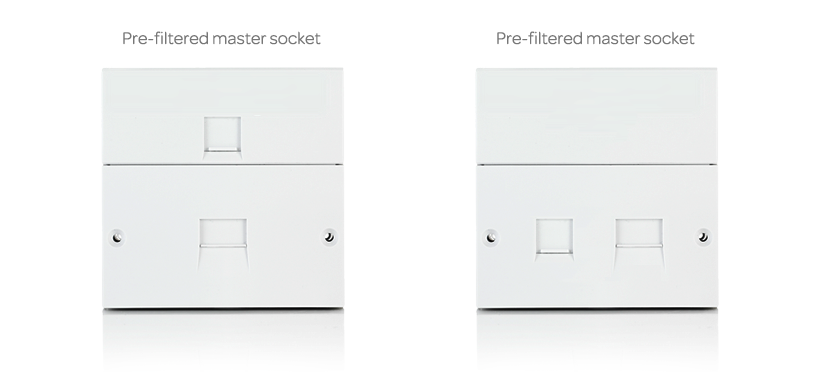
A microfilter prevents your phone signal from interfering with your broadband signal. If you have a pre-filtered master socket (with two built-in ports), you do not need microfilters and can skip to Step 4.
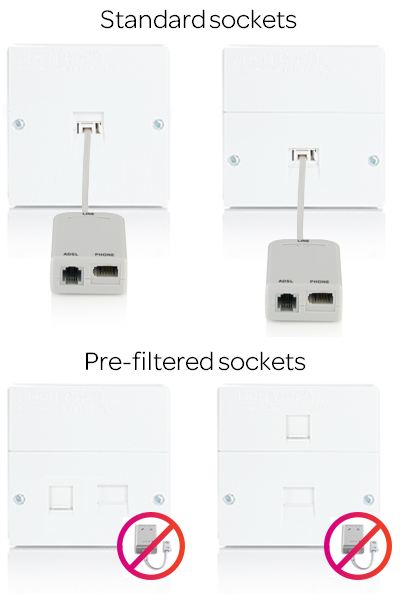
If you have a standard master socket, check the following:
- A microfilter is plugged into every socket that is in use.
- No microfilters are plugged into each other.
- No microfilters are plugged into sockets that are not in use.
If everything looks correct but the issue persists, try replacing your microfilters one at a time, running a speed test after each replacement. A faulty microfilter can cause slow speeds. If your speed improves, a faulty microfilter was the cause. If not, continue to Step 4.
Step 4: Check your router setup
Even if your router was installed by an engineer, cables can become loose over time. Check the following:
- All cables are securely connected to the correct ports on the router.
- The broadband cable is connected to the Broadband port on the back of the router.
- The power adapter is securely plugged in at both ends.
If you made any changes, run a speed test to check for improvement. If your speed is still slow, continue to Step 5.
Step 5: Connect to your test socket
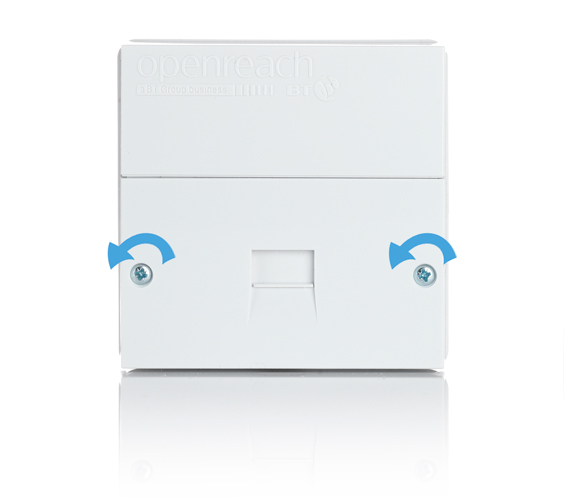
This step only applies if your master socket has a horizontal line across the middle with two screws in the bottom half. If your master socket does not have this, skip to Step 6.
- Using a Phillips crosshead screwdriver, carefully unscrew the two screws on the bottom half of the faceplate.
- Gently pull the faceplate towards you to remove it.
- Locate the test socket on the right-hand side behind the faceplate.
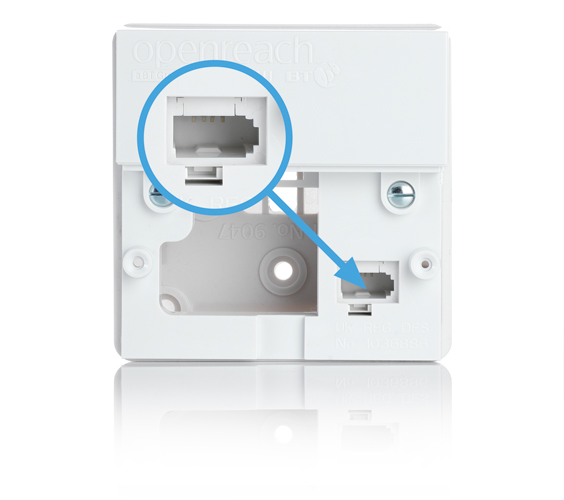
- Plug a microfilter into the test socket.
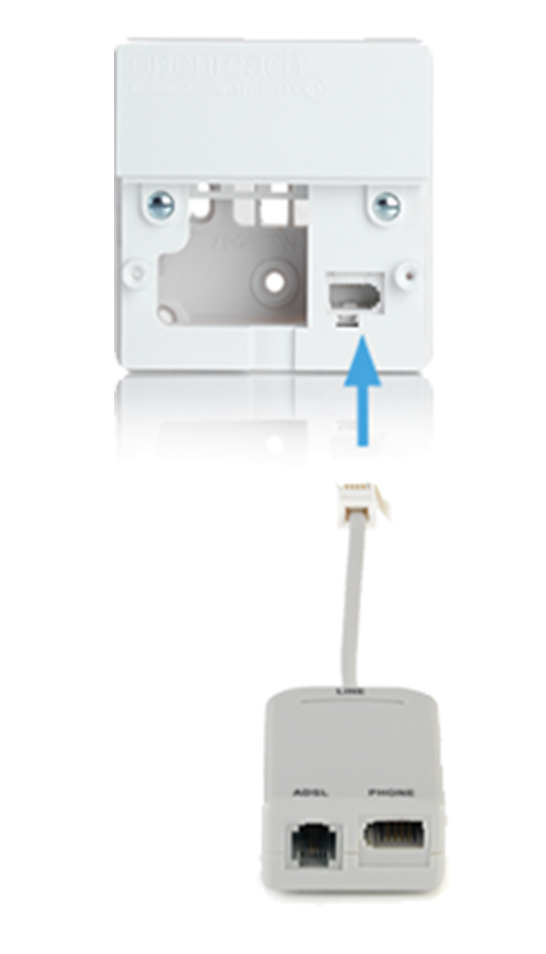
- Connect your router to the microfilter and run a speed test.
Please note: While your router is connected to the test socket, none of your other phone sockets will work.If your speed improves when connected to the test socket, there is likely a fault with your internal phone wiring. Reattach the faceplate and contact bOnline to arrange further investigation. If your speed is still slow, reattach the faceplate and continue to Step 6.
Step 6: Check your splitters
A splitter is a small device that divides one phone connection into two or more. Splitters are sometimes fitted by other providers (for example, when installing a TV set-top box). If you do not have any splitters, skip to the next section.
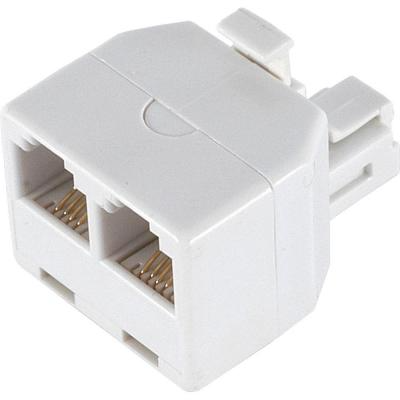
If you have splitters, check the following:
- The microfilter is plugged directly into the socket.
- The splitter is plugged into the microfilter, not the other way around.
If you made changes to your splitter setup, run a speed test. If your speed improves, the splitters were incorrectly configured. Keep the new setup in place. If your speed is still slow, continue to the next section.
Related articles
Was this article helpful?
That’s Great!
Thank you for your feedback
Sorry! We couldn't be helpful
Thank you for your feedback
Feedback sent
We appreciate your effort and will try to fix the article