You can renew your bOnline contract directly through the MybOnline portal in a few steps.
Where you'll see your renewal offer
If your contract is ending soon, a Renew your contract card appears at the top of your Home page.
If your contract has already ended, a Your contract has ended banner appears on the Offers page (which shows in your left-hand menu).

Steps to Follow
Log in to the MybOnline portal.
On the renewal card or banner, select Renew now. This opens the "Your bOnline renewal offer" window.
If you have more than one contract due for renewal, choose which one in the Select a contract to renew window and select Renew. Your chosen offer then appears.
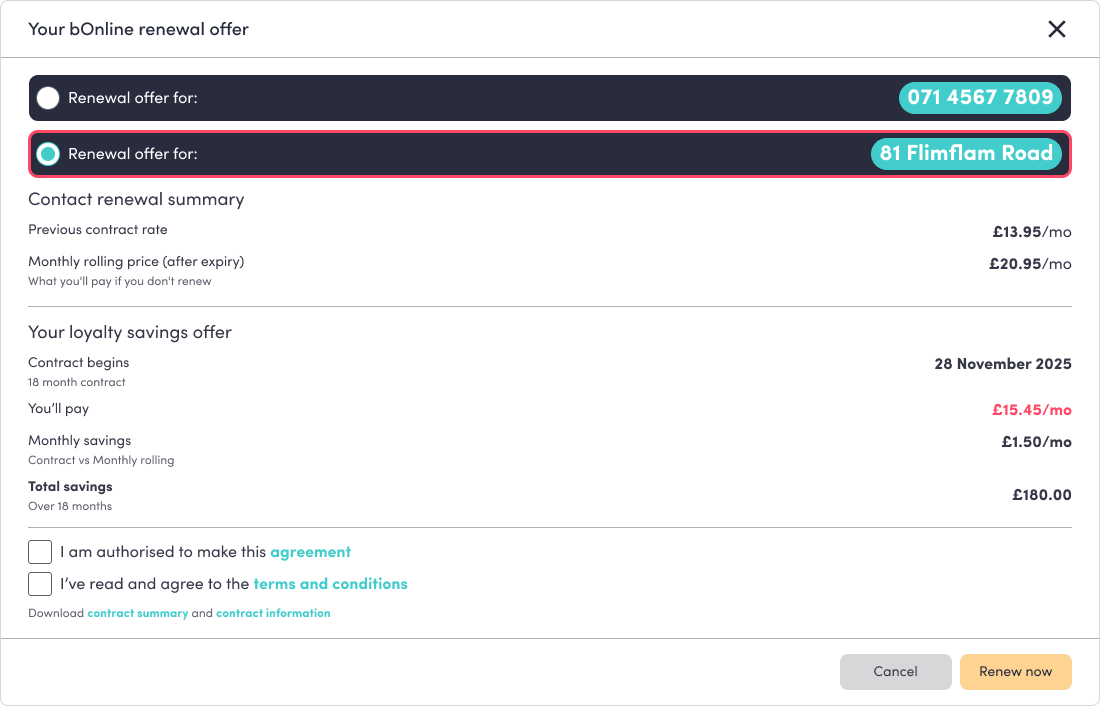
Review your renewal offer — your new monthly price, your monthly saving, and your total saving over the contract term. You can open the contract summary and contract information links to read the documents first (optional).
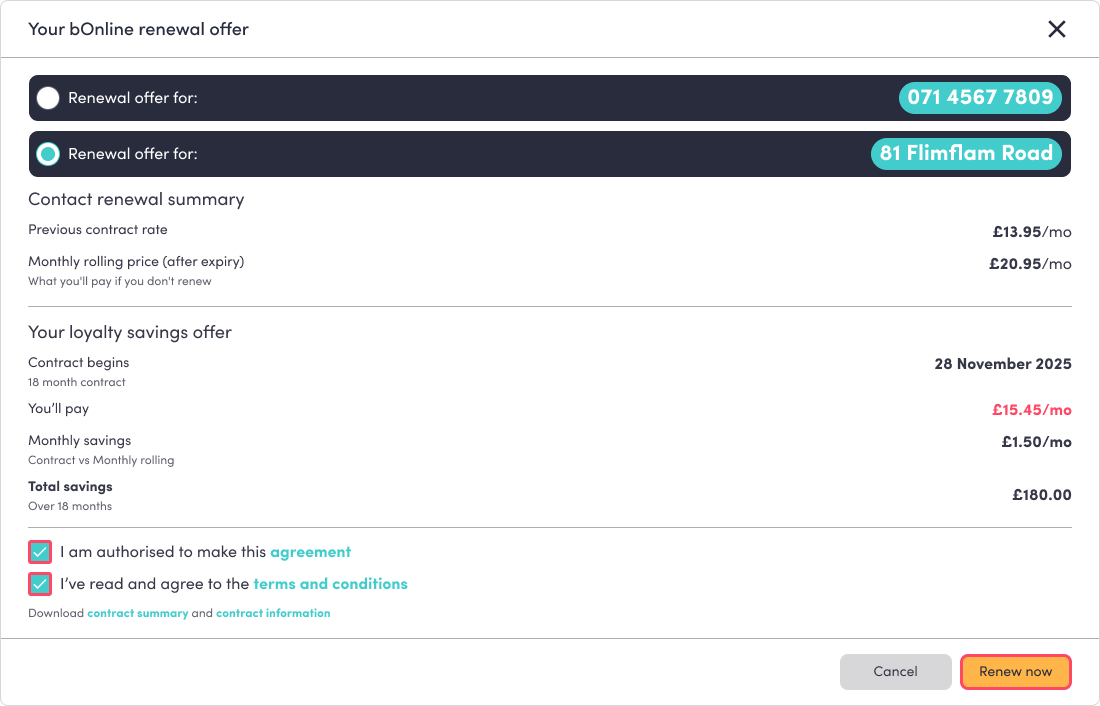
Tick I am authorised to make this agreement.
Tick I've read and agree to the terms and conditions.
The Renew now button becomes active — select it to confirm.
After You Renew
You'll see a "You've renewed successfully!" confirmation.
Select Download contract to save a copy of your new agreement. This takes you back to your Home page.
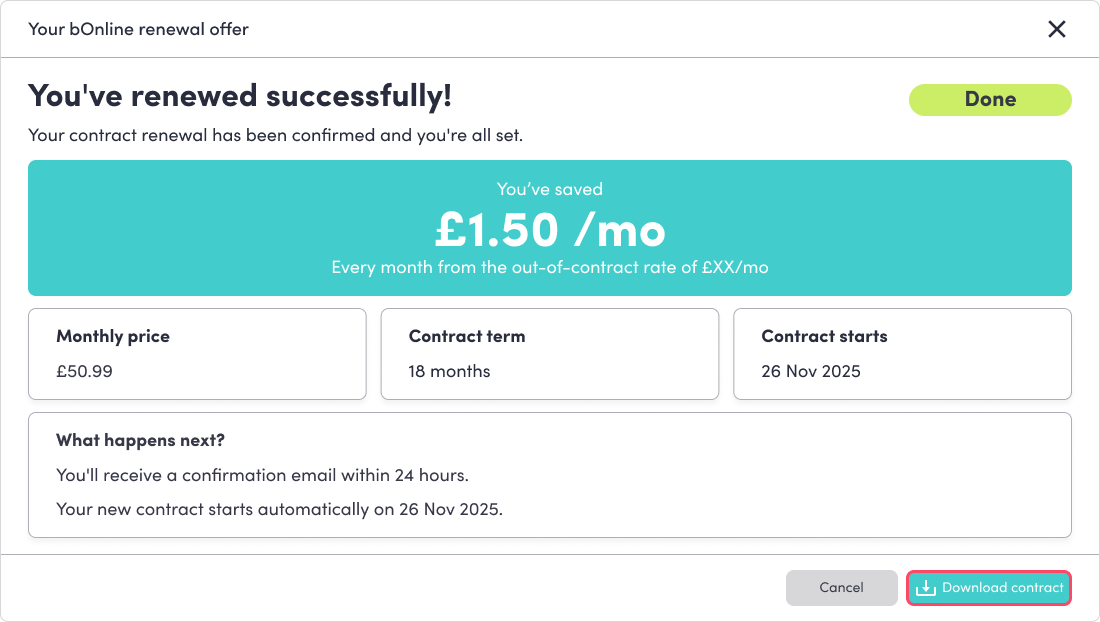
The renewal card is then removed, and your new contract details are emailed to you.
If you close the window (Cancel or the ✕) before renewing, the card stays in place so you can return to it later.
Video Walkthrough
See the attached video for a full walkthrough.
Related Articles
Was this article helpful?
That’s Great!
Thank you for your feedback
Sorry! We couldn't be helpful
Thank you for your feedback
Feedback sent
We appreciate your effort and will try to fix the article