This article explains how to reset your bOnline mobile app login PIN. It applies to all bOnline customers who use the mobile or desktop app.
There are two ways to reset your PIN - through the mobile app itself, or through the MYbOnline portal.
Option 1 - Reset your PIN via the mobile app
Use this method if you still have the app installed on your phone.
- Open the bOnline app and go to the login screen.
- Tap Forgot Login PIN.
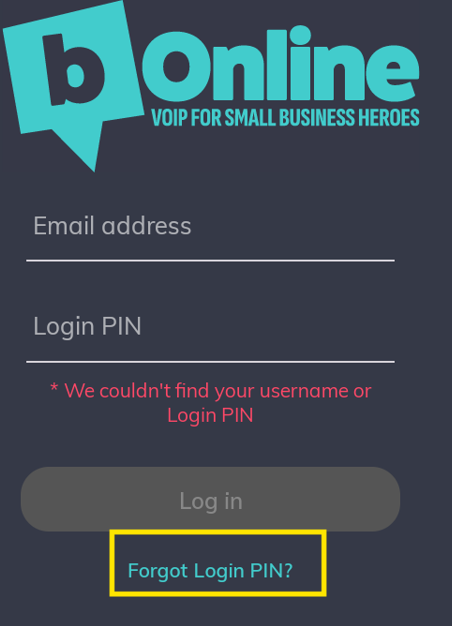
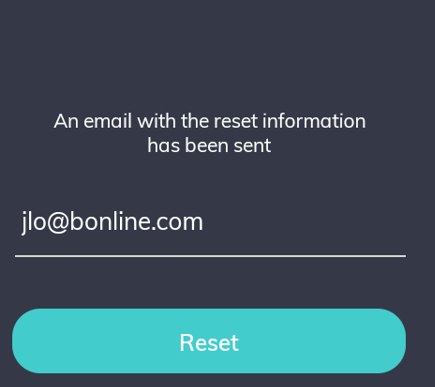
- Enter the email address linked to your bOnline account and tap Confirm.
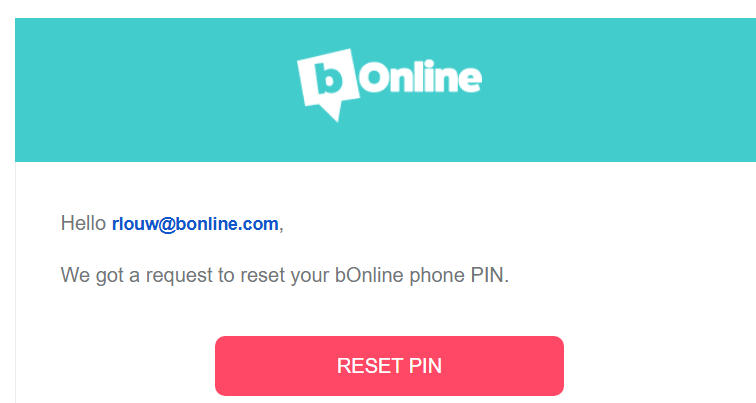
- Open the PIN reset email in your inbox and follow the link inside it.
- Enter your new 6-digit PIN and confirm it.
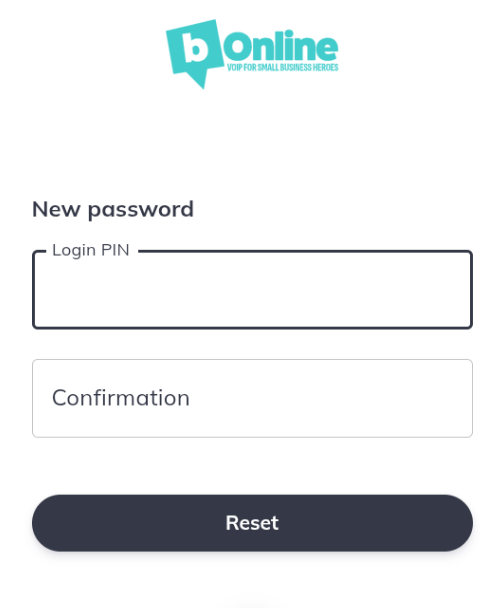
Once you have confirmed your new PIN, you can log in to the app straight away.
Option 2 - Reset your PIN via the MYbOnline portal
Use this method if you are an account administrator, or if you need to reset the PIN for another user on your account.
- Log in to the MYbOnline portal at my.bonline.com.
- Go to Phone Settings and select Users and Devices.
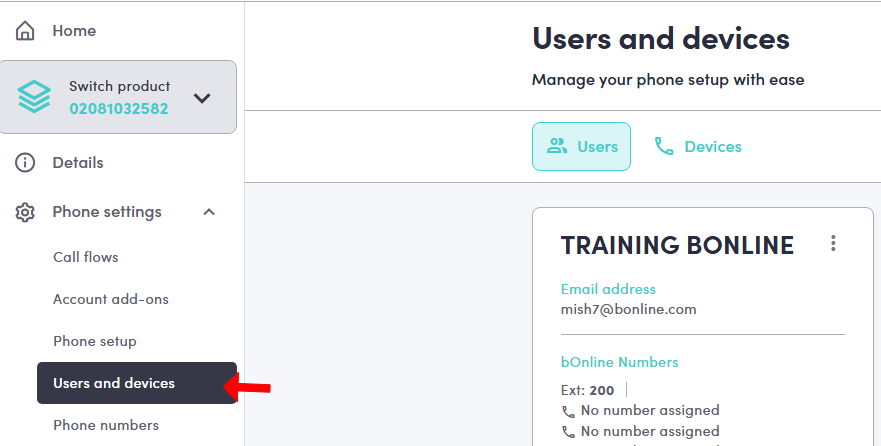
- Find the relevant user and click the ellipsis (...) next to their name.
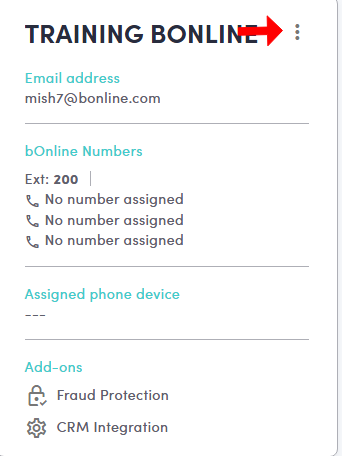
- Select Reset PIN from the menu.
- Enter a new 6-digit PIN and click Save.
The user can now log in to the mobile or desktop app using the new PIN.
Quick reference
| Method | Best used when | Where |
|---|---|---|
| Via the mobile app | You have forgotten your own PIN | bOnline mobile app login screen |
| Via MYbOnline portal | You are an admin resetting a PIN for another user | my.bonline.com - Phone Settings - Users and Devices |
Need more help?
If you are still unable to reset your PIN, you can contact bOnline support via WhatsApp or through the MYbOnline portal.
Related articles
Was this article helpful?
That’s Great!
Thank you for your feedback
Sorry! We couldn't be helpful
Thank you for your feedback
Feedback sent
We appreciate your effort and will try to fix the article