This article explains how to assemble, connect, and power up your Yealink T31P IP phone for use with bOnline.
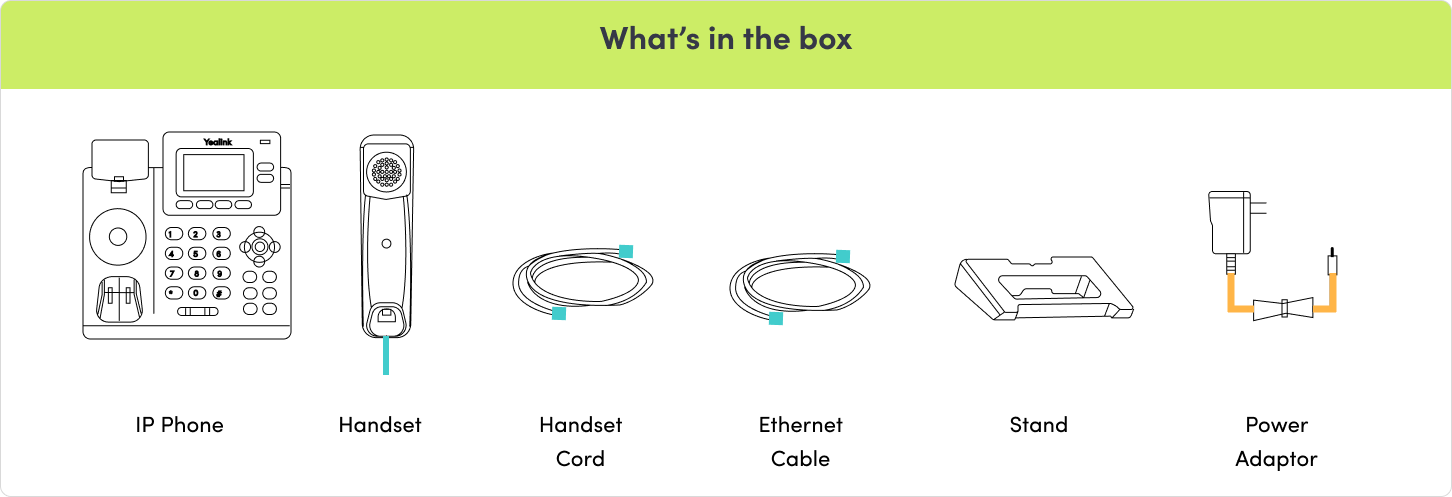
Attach the Stand
- Align the stand with the back of the phone.
- Snap it in at your preferred angle (40° or 45°).
Please note: If you plan to wall-mount the phone, use the wall-mount slots on the back instead of the stand.Connect the Handset
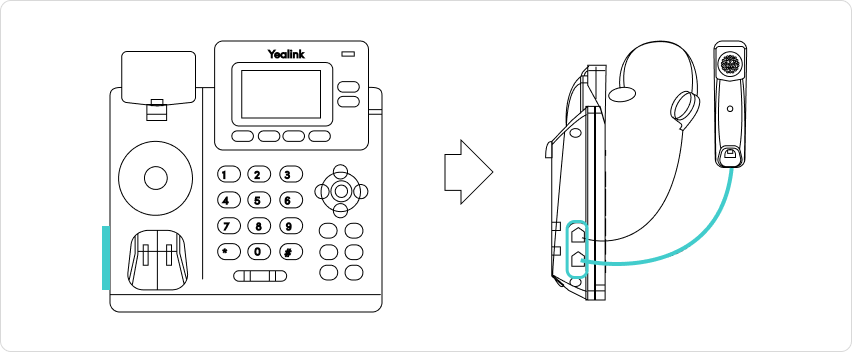
- Connect one end of the handset cord into the handset.
- Connect the other end into the Handset port on the back of the phone.
- If you are using a headset, connect it to the Headset port (optional).
Connect to Network and Power
There are two ways to power your Yealink T31P:
Option A: Power over Ethernet (PoE)
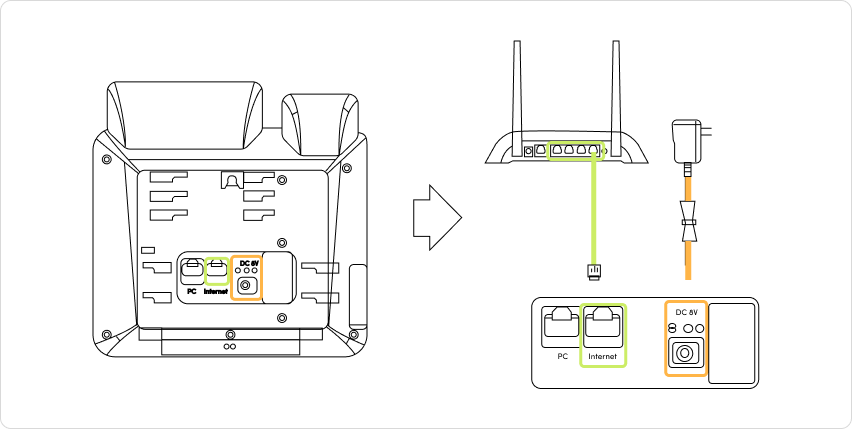
- Connect an ethernet cable from the Internet port on the phone to a PoE switch or injector.
- No power adapter is needed with this option.
Option B: Standard Power and Ethernet
- Connect an ethernet cable from the Internet port on the phone to your router or network switch.
- Connect the power adapter to the DC input on the phone and plug it into a wall socket.
Power Up
The phone will boot automatically and begin initialising. Once ready, it will display the home screen. Your phone is now ready for provisioning.
For the full manufacturer guide, download the Yealink T31P Quick Start Guide PDF attached below this article.
Contact Us
We're always up for a chat! Live chat is available via the mybOnline sidebar or from the bottom-right corner of this page.
Other Contact Options
Reach the support team via WhatsApp for quick queries.
Log in to mybOnline and use the in-portal contact options.
Was this article helpful?
That’s Great!
Thank you for your feedback
Sorry! We couldn't be helpful
Thank you for your feedback
Feedback sent
We appreciate your effort and will try to fix the article