This article explains how to assemble your Yealink AX83H Wi-Fi IP phone, connect it to Wi-Fi, and get it ready for use with bOnline.
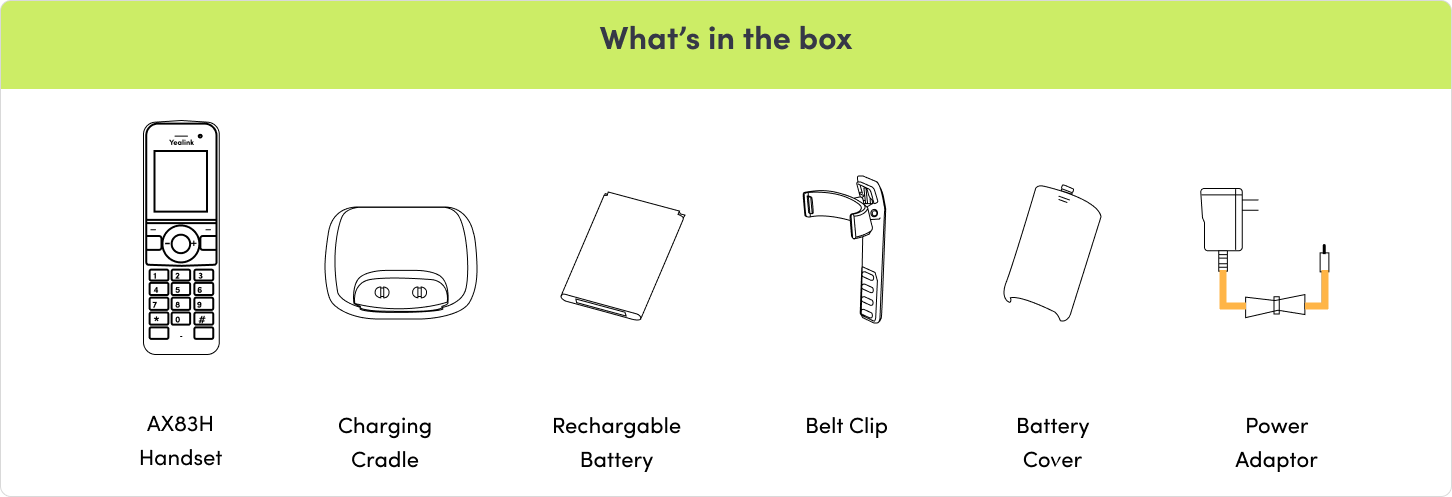
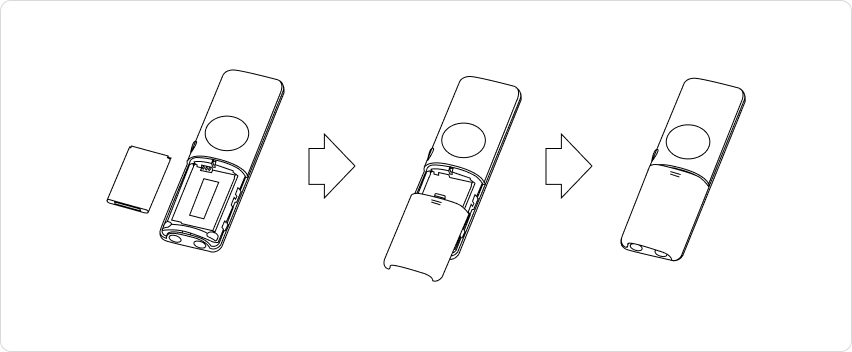
Insert the Battery
- Slide the battery into the compartment at the back of the handset.
- Secure it with the battery cover.
Attach the Belt Clip (Optional)
Snap the belt clip onto the rear of the handset if you plan to carry it.
Wall-Mount the Cradle (Optional)
- Align two mounting screws 38 mm apart on the wall.
- Hang the cradle securely using the slots on the back.
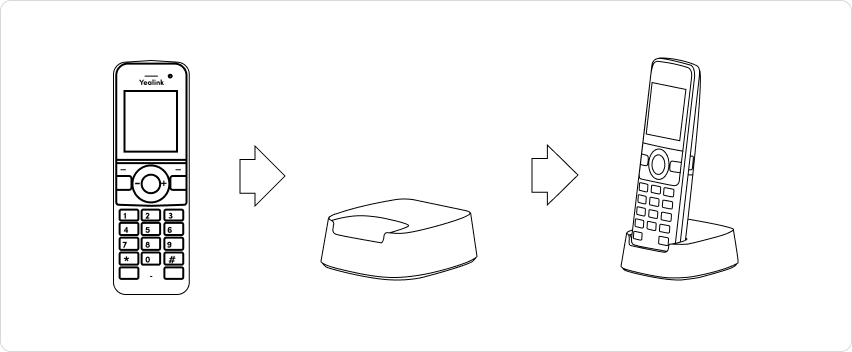
Connect the Charging Cradle
- Connect the power adapter to the cradle and plug it into a wall socket.
- Place the handset into the cradle to begin charging.
Power On
Press and hold the power button until the screen lights up.
Connect to Wi-Fi
There are two ways to connect your AX83H to Wi-Fi.
Option 1: Quick Wi-Fi Connect via Smartphone (Recommended)
- On the handset, press OK and select Quick Wi-Fi Connect.
- The phone will display a QR code and a temporary Wi-Fi network name (SSID).
- On your smartphone, scan the QR code.
- A setup page will open. Connect to the Wi-Fi network using the details shown on the handset screen.
- Select Confirm.
Option 2: Manual Wi-Fi Setup on the Handset
- Press OK on the handset.
- Select Wi-Fi.
- Choose your Wi-Fi network from the list.
- Enter the Wi-Fi password and confirm.
Batch Deployment (Multiple Handsets)
Batch Deployment lets you copy the Wi-Fi network configuration from one handset to other new handsets using a hotspot.
On the provisioned handset:
- Open the menu and go to Wi-Fi.
- Select Batch Deployment.
- Select Enable Hotspot.
- Select Save.
On the new handsets:
- Power on the new handsets.
- Open the menu and go to Wi-Fi.
- Select Batch Deployment.
- Select Enable Hotspot.
- Select Save.
The new handsets will receive the Wi-Fi configuration from the provisioned handset automatically.
Contact Us
We're always up for a chat! Live chat is available via the mybOnline sidebar or from the bottom-right corner of this page.
Other Contact Options
Reach the support team via WhatsApp for quick queries.
Log in to mybOnline and use the in-portal contact options.
Was this article helpful?
That’s Great!
Thank you for your feedback
Sorry! We couldn't be helpful
Thank you for your feedback
Feedback sent
We appreciate your effort and will try to fix the article