To set up your Grandstream HT80x series ATA (Analogue Telephone Adapter) for the bOnline service, follow this step-by-step guide. I have organised your screenshots into the correct logical flow for a professional installation.
Step 1: Access and Login
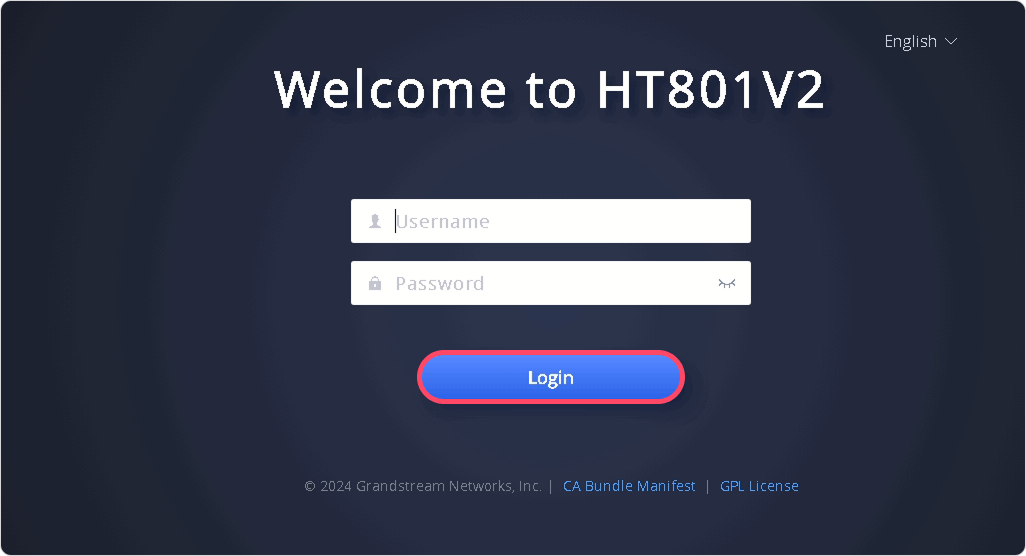
Connect your computer to the same network as the ATA. To find the device's IP address, dial ***02 on a connected analogue phone, then enter the IP address into your web browser.
Log in using the default credentials (usually admin/admin).
Step 2: Checking Initial Status
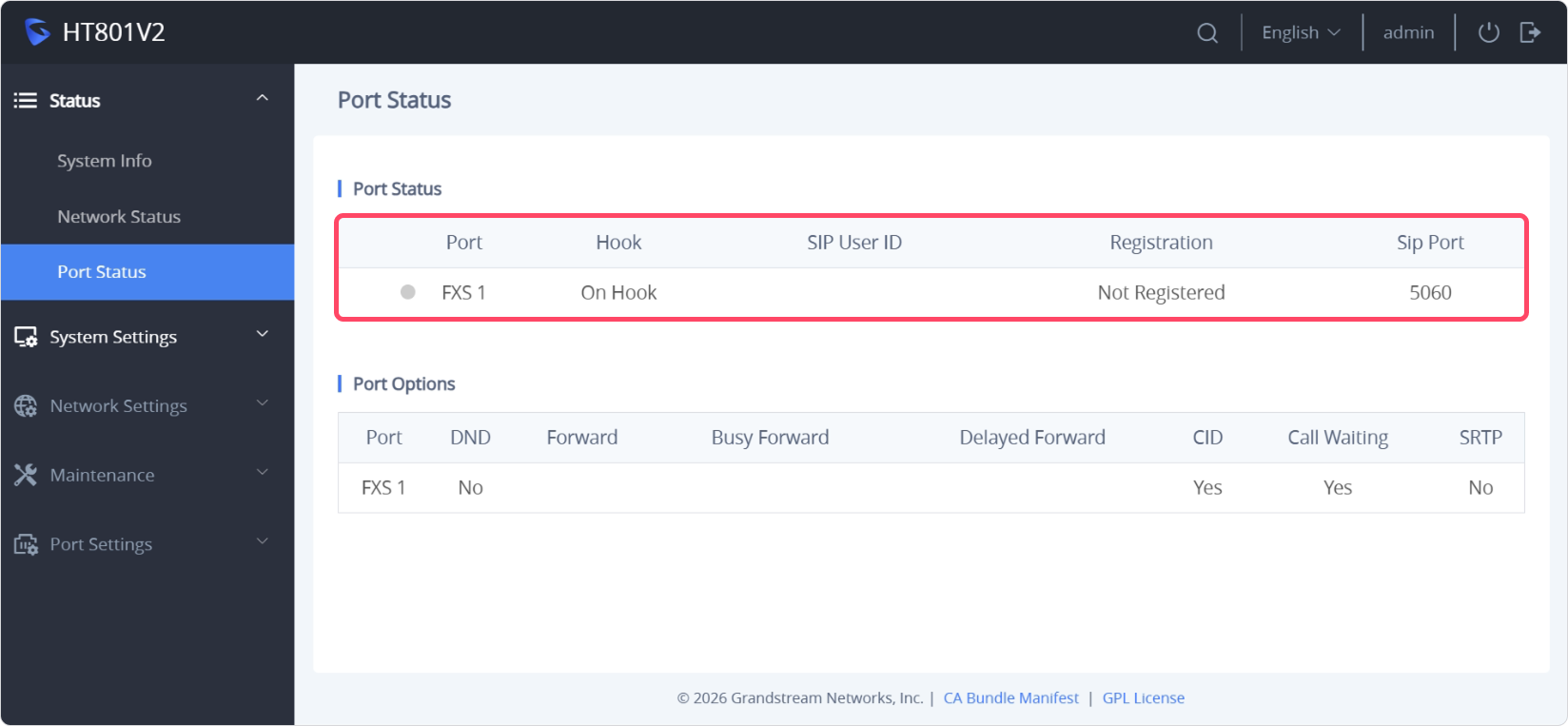
Navigate to Status > Port Status. At this stage, the device will show as "Not Registered."
Step 3: Automated Provisioning
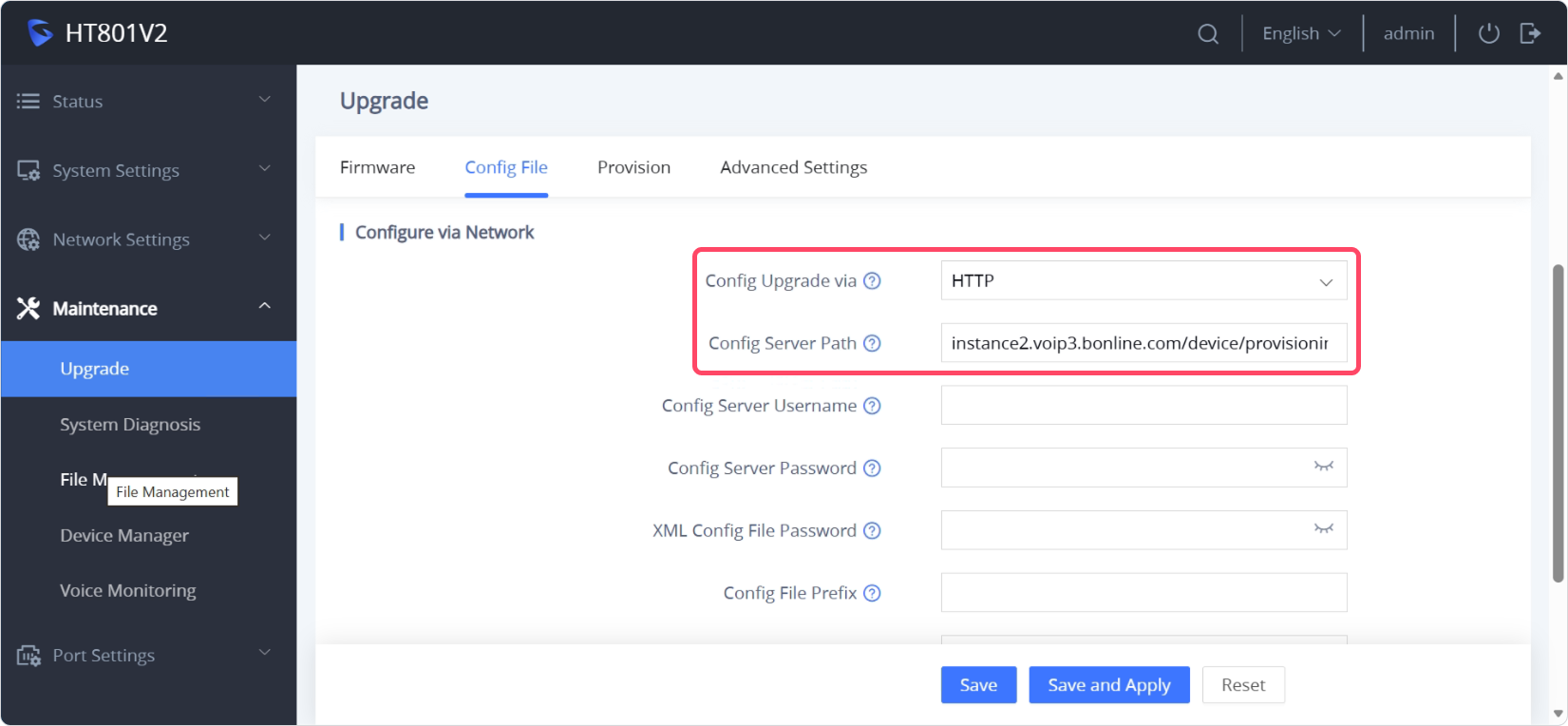
Go to Maintenance > Upgrade and Provisioning>Config file.
Set the "Config Server Path" to the bOnline instance to automatically pull settings.
Step 4: Manual Port Activation
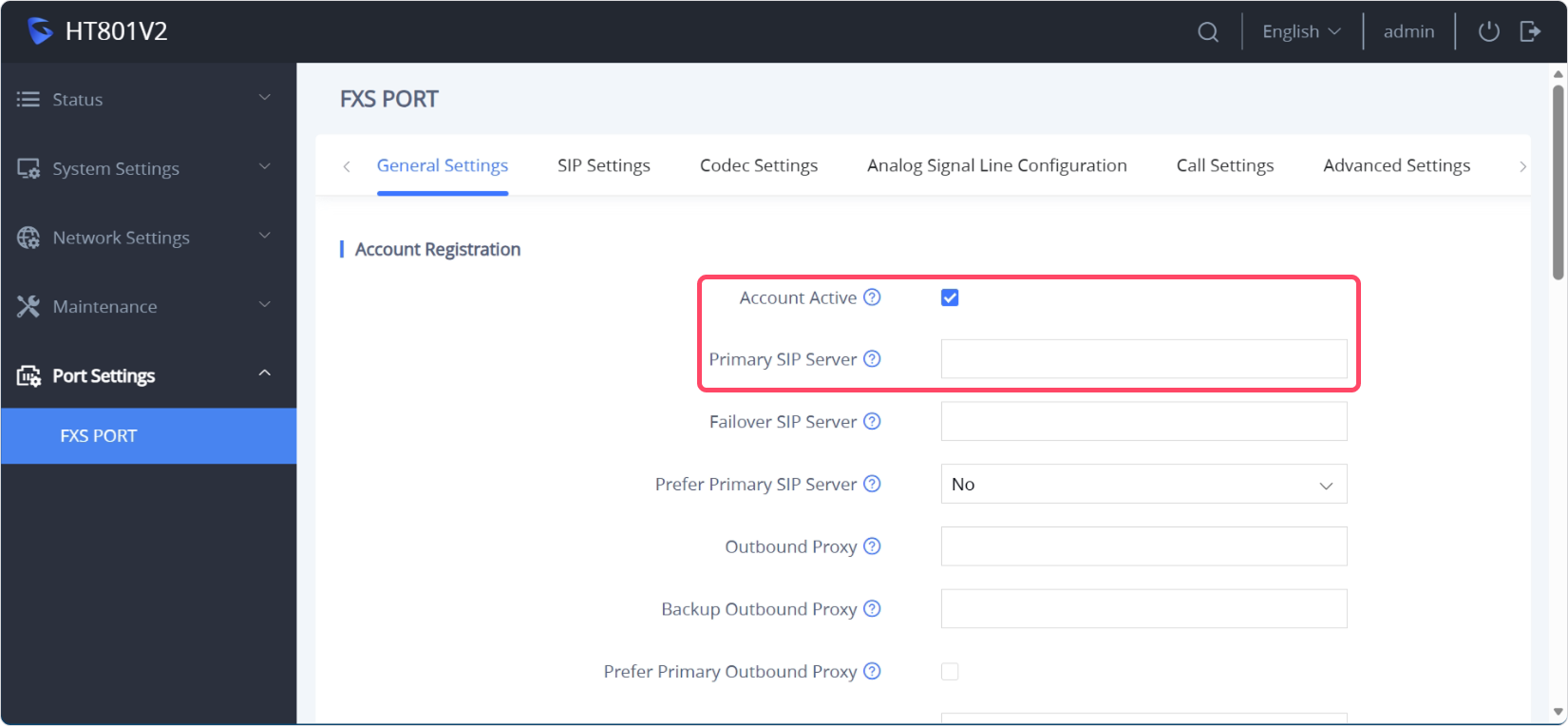
If you're not using automated provisioning, you'll need to activate the account manually. Go to FXS Port > General Settings and:
Tick Account Active
Enter the Primary SIP Server provided by bOnline
Step 5: Firmware Check
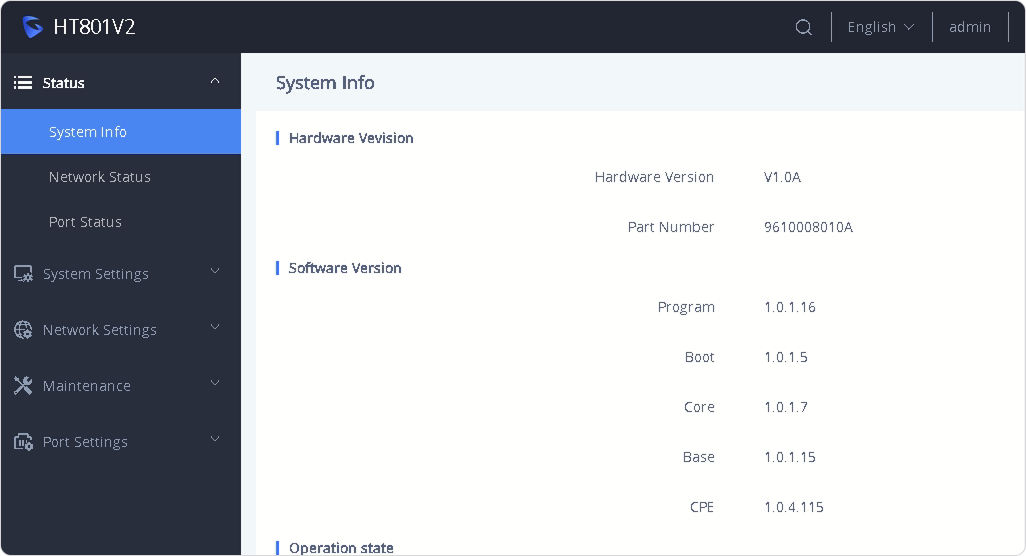
Go to Maintenance > Upgrade to make sure your firmware is up to date. This helps ensure stability on modern networks.
Step 6: Final Registration Verification
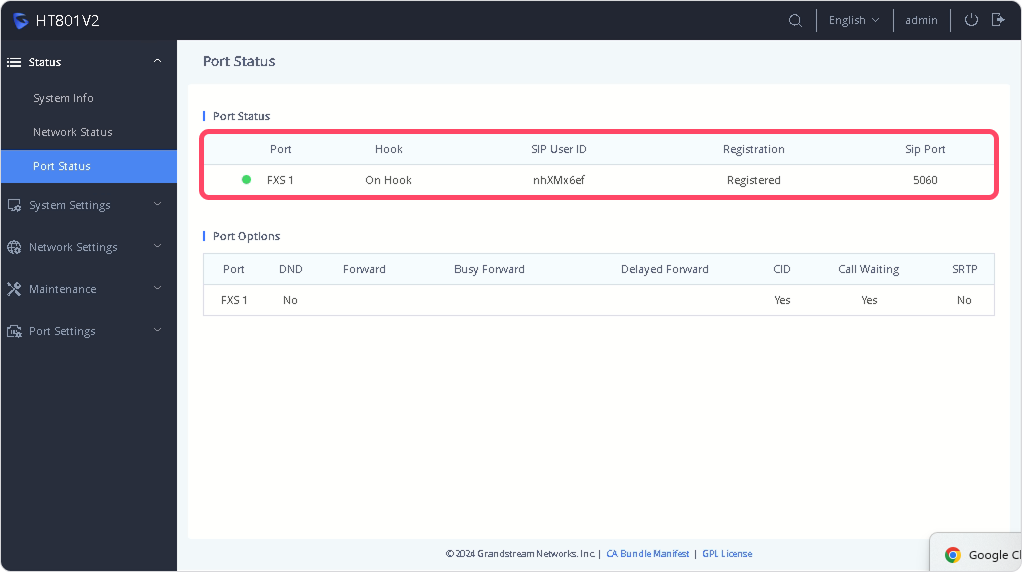
After saving your changes, the device may reboot. Once it's back online, return to Status > Port Status. The Registration column should now show "Registered" in green, with your User ID visible.
Was this article helpful?
That’s Great!
Thank you for your feedback
Sorry! We couldn't be helpful
Thank you for your feedback
Feedback sent
We appreciate your effort and will try to fix the article