This article explains how to set up call diverts and call forwarding on your bOnline account. These are two different features that redirect calls in different ways. Follow the steps for the platform you are using: the MYbOnline portal, the bOnline mobile app, or the bOnline desktop app.
What is the difference between a divert and call forwarding?
bOnline offers two ways to redirect your calls. The right option depends on whether you want to redirect calls at the account level or the user level.
- Temporary Divert (account level) — Set up on the MYbOnline portal. A divert redirects calls before they enter the bOnline call flow. The call does not reach the system and is sent directly to the destination number. This affects all incoming calls to the number.
- Call Forwarding (user level) — Set up on the bOnline mobile app or desktop app. Call forwarding redirects calls after they have reached the bOnline system. The call enters the call flow first, and is then forwarded based on rules you set (for example, when you do not answer or when your line is busy). This only affects the individual user.
If you are unsure which option to use: choose Call Forwarding if you want calls to follow your normal call flow before being redirected. Choose Temporary Divert if you want all calls to go straight to another number, bypassing the call flow entirely.
Setting up a Temporary Divert on the MYbOnline portal (account level)
A Temporary Divert redirects all incoming calls directly to another number without going through the bOnline call flow. To set this up, navigate to Phone Settings > Call Flows > Temporary Divert.
- Log in to the MYbOnline portal and navigate to Phone Settings.
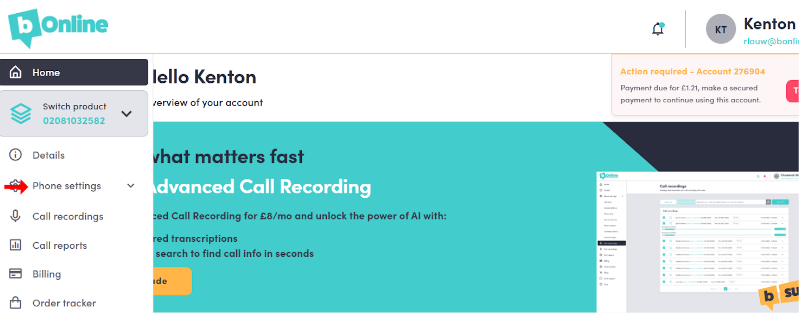
- Select Call Flows.
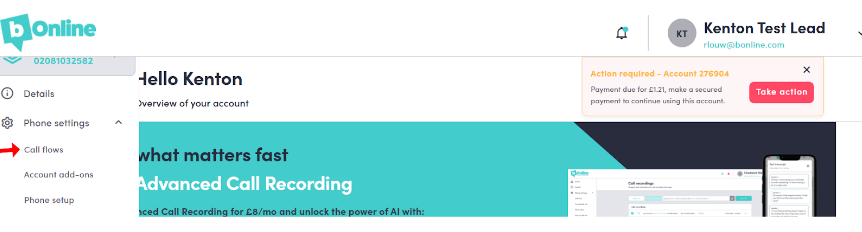
- Select Temporary Divert.

- A pop-up will appear. Toggle the divert to On and enter the phone number you would like your calls to be diverted to.
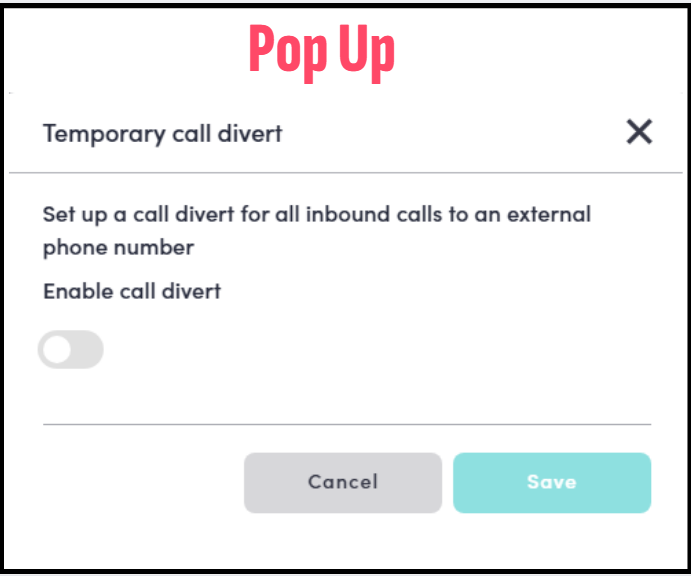
- Select Save to apply the divert.
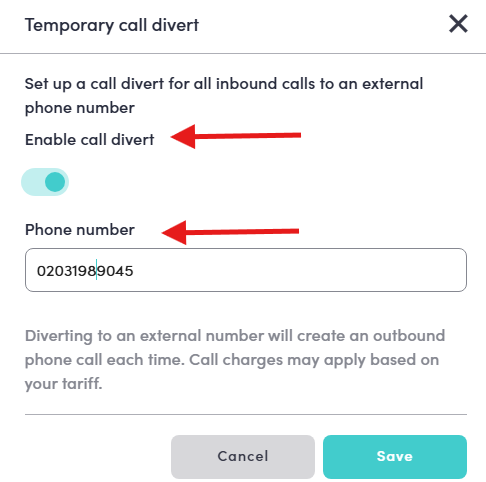
Please note: A Temporary Divert is a direct divert. All incoming calls will be sent immediately to the destination number and will not go through the call flow on the bOnline system. This means other users in the call flow will not ring.
Setting up Call Forwarding on the mobile app (user level)
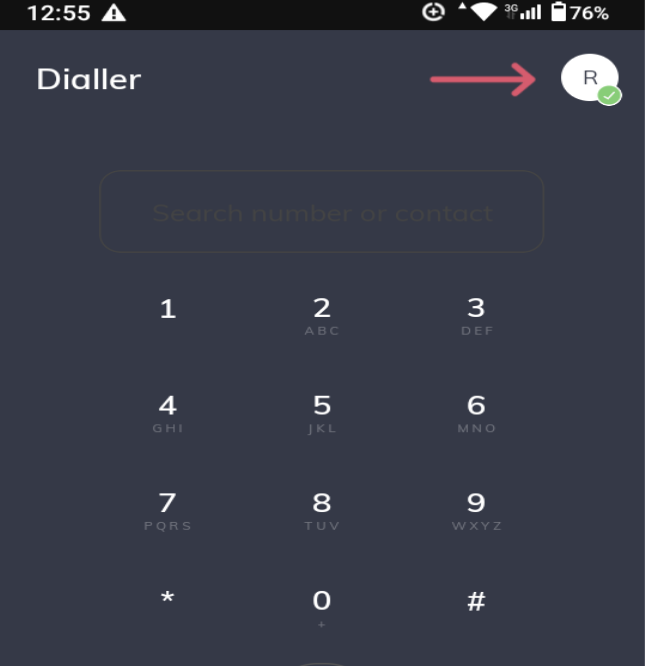
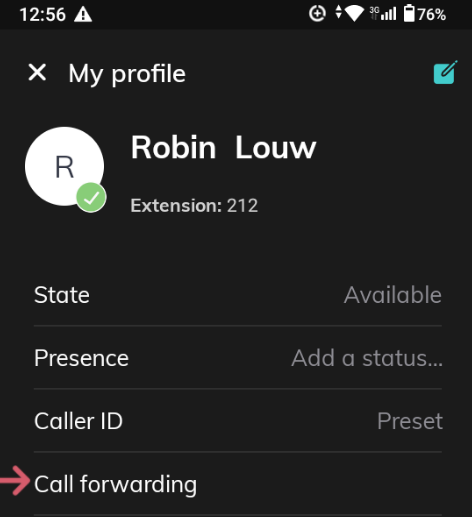
Call Forwarding on the mobile app applies to your individual user only. The call reaches the bOnline system first and is then forwarded based on the rule you set. To set this up, go to Profile > Call Forwarding.
- Tap the Profile icon in the top-right corner of the app.
- Select Call Forwarding.
- Choose the call forwarding rule that matches your requirement:
- Always: Forwards all incoming calls to a number of your choice, regardless of your availability. The call still enters the bOnline system before being redirected.
- No Answer: Forwards calls when you do not answer within the ring time. The ring time is based on the Voicemail Delay setting in the Phone Setup section of the MYbOnline portal.
- Busy: Forwards calls when your status is set to unavailable or your line is busy.

Please note: Some call forwarding rules will not take effect if more than one user is set to ring in the call flow.
Setting up Call Forwarding on the desktop app (user level)
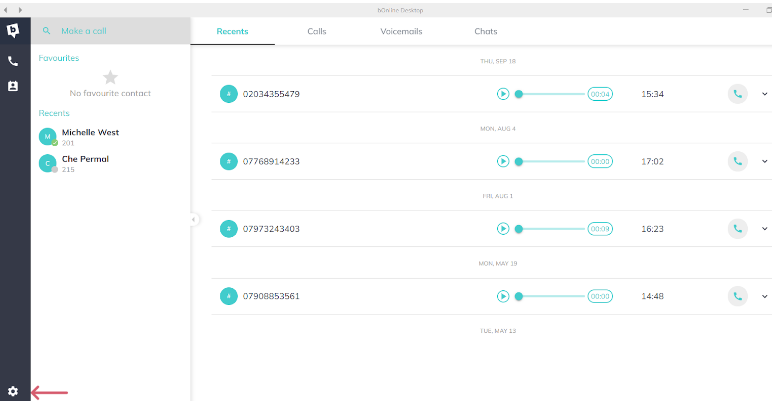
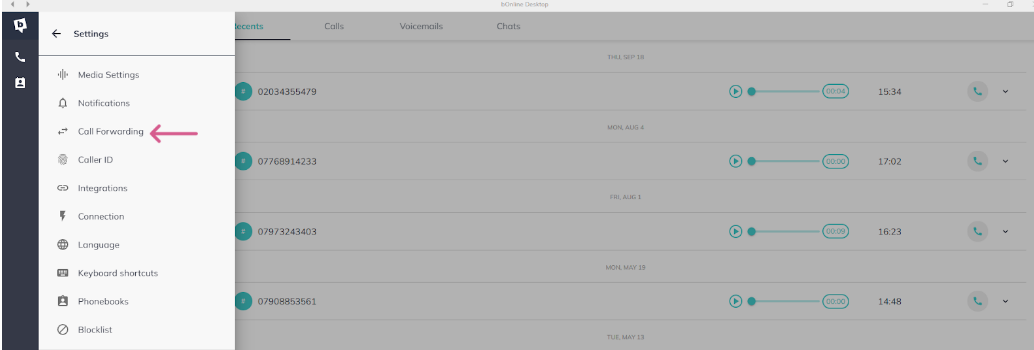
Call Forwarding on the desktop app works the same way as on the mobile app — it applies to your individual user only and the call passes through the bOnline system before being forwarded. To set this up, go to Settings > Call Forwarding.
- Click the Settings icon in the bottom-left corner of the application.
- Select Call Forwarding.
- Choose the call forwarding rule that suits your needs (Always, No Answer, or Busy), enter the destination number, and select Save.

Related articles
Was this article helpful?
That’s Great!
Thank you for your feedback
Sorry! We couldn't be helpful
Thank you for your feedback
Feedback sent
We appreciate your effort and will try to fix the article